
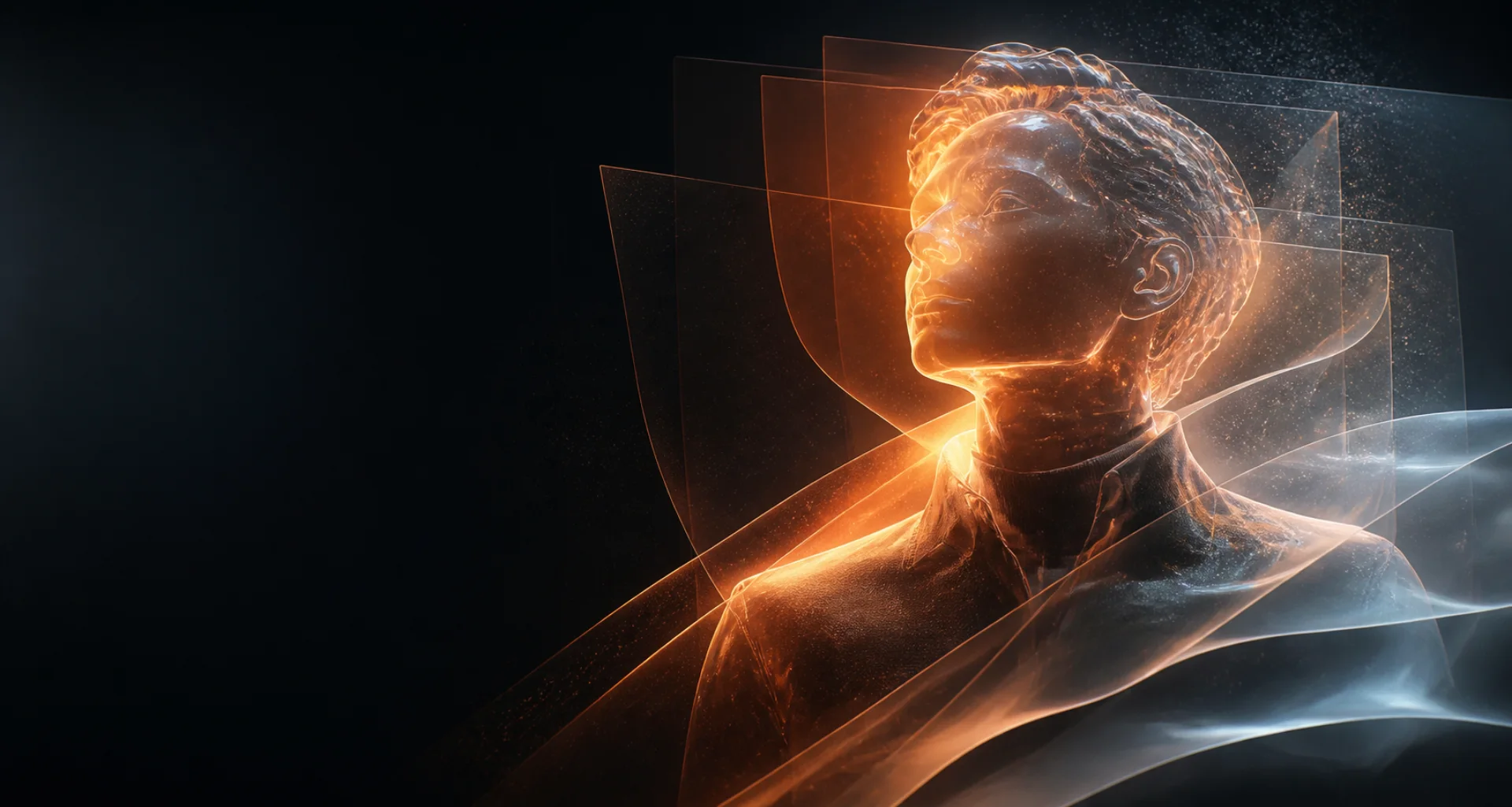
Animate an image with AI
Turn an image into a short AI video.
Start from a composition you already like, describe the subject and camera motion, then generate and review a short video variation.
Direct answer
What is image-to-video AI?
Image-to-video AI uses a still image as the visual starting point for a generated clip. The source anchors the subject and composition, while a motion prompt directs actions, camera movement, pace, and atmosphere over time.
At a glance
Key facts before you generate.
- 01
Source image
A clear, authorized still image anchors the opening composition, subject, lighting, and visual style.
- 02
Motion prompt
Describe what changes over time: subject action, environmental movement, camera direction, and pace.
- 03
What may drift
Faces, hands, background objects, textures, edges, and proportions can change between generated frames.
- 04
Best scope
One restrained action and one camera move usually provide a clearer target than a multi-event scene.
A practical workflow
Animate a still in four deliberate steps.
- 01
Select a strong image
Choose a clear source with the subject, framing, and details you want the video to preserve.
- 02
Write a motion prompt
Describe movement over time—such as a turn, expression, breeze, or camera push—rather than restating the image.
- 03
Generate alternatives
Try restrained variations so you can compare motion, stability, and how well the clip respects the source.
- 04
Inspect the complete clip
Check the subject, background, edges, hands, and final frames for changes that make the video unusable.
Creative control
A better source creates a better starting point.
Use an image with a readable silhouette and intentional composition. Busy backgrounds and ambiguous anatomy give the model more details to reinterpret.
Use only images you created or have permission to transform. The source image does not remove your responsibility for consent, privacy, or intellectual-property rights.
Read responsible-use guidanceBest suited for
Still images that benefit from subtle movement.
Portrait animation
Add a restrained expression, head turn, hair movement, or camera push while keeping the original framing recognizable.
Environmental motion
Introduce rain, drifting fabric, moving light, smoke, water, or other atmospheric details around a fixed subject.
Concept previews
Test how a selected keyframe behaves in motion before investing in a longer editing or production workflow.
Prompt pattern
A useful starting structure.
Image-to-video prompt: Keep the subject and composition stable; subtle breathing and a small head turn toward camera; hair moves gently in the breeze; slow handheld camera drift; no scene change.
Adapt this structure to your own idea. Model behavior varies, so treat every generation as a candidate to inspect rather than a guaranteed final asset.
Explore the workflow
Related AI creation guides.
- 01
AI character generator
Design an original character for images, short video, and voice.
- 02
Consistent AI characters
Keep recognizable traits while scenes and creative directions change.
- 03
AI video generator
Create short motion from prompts or a selected starting image.
- 04
AI selfie generator
Explore new portrait directions from authorized references.
Useful answers
Image-to-video AI FAQ
01How do I turn a photo into an AI video?
Upload or select an authorized image, choose an image-to-video model, describe a focused motion, and generate the clip.
02What is a good image-to-video prompt?
Describe one main action plus optional camera movement and atmosphere—for example, a subtle head turn while the camera slowly moves closer.
03Does the video keep the original image unchanged?
The source guides the result, but generated frames can alter details. Review the whole clip for identity, anatomy, and background drift.
04Can I animate another person’s photo?
Only if you have the necessary permission and rights. Non-consensual or deceptive uses and private material are prohibited.
Create, compare, review
Start with the frame. Direct what happens next.
Editorially reviewed: